


AWS S3 Versioning

Updated: Dec 8, 2021
Enable version control on S3 bucket & understand the S3 behaviour.
Step 1: In AWS console go to S3 services. Select Buckets and click on Create bucket.

Step 2: Give a bucket name.
Here mybucket753159 is a random name chosen for your bucket.
You may have to try givinga different name if your required bucketname is already being used by some other AWS user.

Uncheck the Block all public access box and acknowledge.


Click on Create bucket in bottom.
Check your created bucket.

Step 3: Click on Bucket and open, Upload an image file in the bucket.

Step 4: Now click Properties.

Under Bucket Versioning click Edit.

Enable bucket versioning and click on save changes.

Step 5: Create a new text file on your local drive for testing purposes.

Open this file and type “This is the first version”. Save this file.

Step 6: Go to your buckets window and click on Upload.

Click on Add files. Locate the file on your local drive and open it.
Click on Upload button in bottom right corner.

Your file would be visible in the bucket.
The Show Versions button is visible in the overview. Enable it.

Here we observe that the IMG file does not have a Version ID. It has a null value. Whereas, the MyNewFile has a Version ID because it was uploaded after the versioning was enabled.

Step 7: Open the text file on your local drive and update the file with a new line: This is the second version.

Save this file without changing the file name. Upload the file into the bucket. Follow Step 6.
Similarly upload the file with a third version.
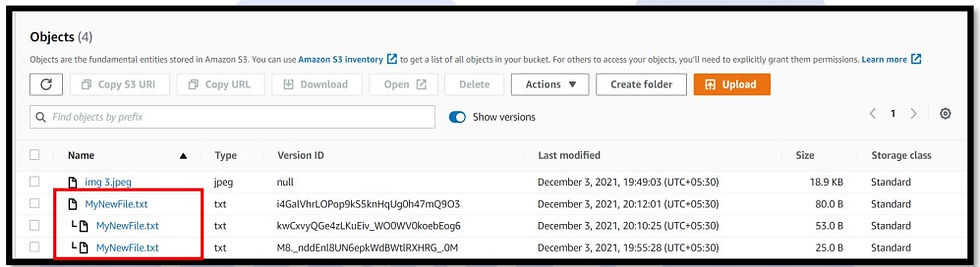
The first version and second version can be seen under the third version which is the latest version.
Disable Show versions option.
Step 8: Select this MyNewFile and click on Delete.

Confirm deletion and delete the object.

Step 9: Enable Show Versions option. The latest file has a (Delete marker) which states that the file is not accessible readily and hence was not visible when the Versions were hidden.

You can download any of these file versions, restore the file and thus maintain the Data Security even after deletion.

Note: Delete the S3 bucket if you no longer need to use it.
Was this document helpful? How can we make this document better? Please provide your insights. You can download PDF version for reference.
We provide the best AWS training from Pune, India.
For aws certification contact us now.


Good Explaination.
useful
well explained
very useful
Thanks for sharing